
'/%3e%3cpath%20d='M4.94162%205.99547L4.02701%205.08086L3.63428%205.47359L4.94162%206.78093L7.63768%204.08487L7.24495%203.69214L4.94162%205.99547Z'%20fill='white'/%3e%3cdefs%3e%3clinearGradient%20id='paint0_linear_2302_10195'%20x1='0.5'%20y1='10'%20x2='10.4939'%20y2='10'%20gradientUnits='userSpaceOnUse'%3e%3cstop%20stop-color='%234E10FF'/%3e%3cstop%20offset='1'%20stop-color='%23AB17DF'/%3e%3c/linearGradient%3e%3c/defs%3e%3c/svg%3e)
Updated: May 24, 2024
If you’re anything like me and spend countless hours at your PC, you’ve probably felt too lazy to grab your phone just to crack open a couple of crown chests in Clash Royale. For a long time, the only real workaround was installing heavy emulators that devoured half your computer's RAM and forced you to mess with BIOS settings. The great news is that today you can play straight from your web browser thanks to modern cloud gaming, or just rock the official version built specifically for Windows.

Here’s a step-by-step breakdown of how to get your matches running smoothly, without the technical headaches, all while keeping every bit of progress for your cards, your clan, and your hard-earned trophies.
Play Clash Royale in your browser with cloud gaming
If you’re looking for a completely download-free experience and don't want to waste storage space, cloud gaming platforms like Easyfun are the ultimate solution. You just hop onto their website, look up Clash Royale, and the game boots up on a high-end remote server while you easily control it from your screen.
It’s awesome because you don't need a beefy gaming rig. All you really need is a stable internet connection—preferably wired—and an updated browser.
- Jump onto your preferred cloud gaming platform.
- Search for Clash Royale in their game library.
- Smash that play button, and you’ll be thrown into the main arena without downloading a single megabyte.
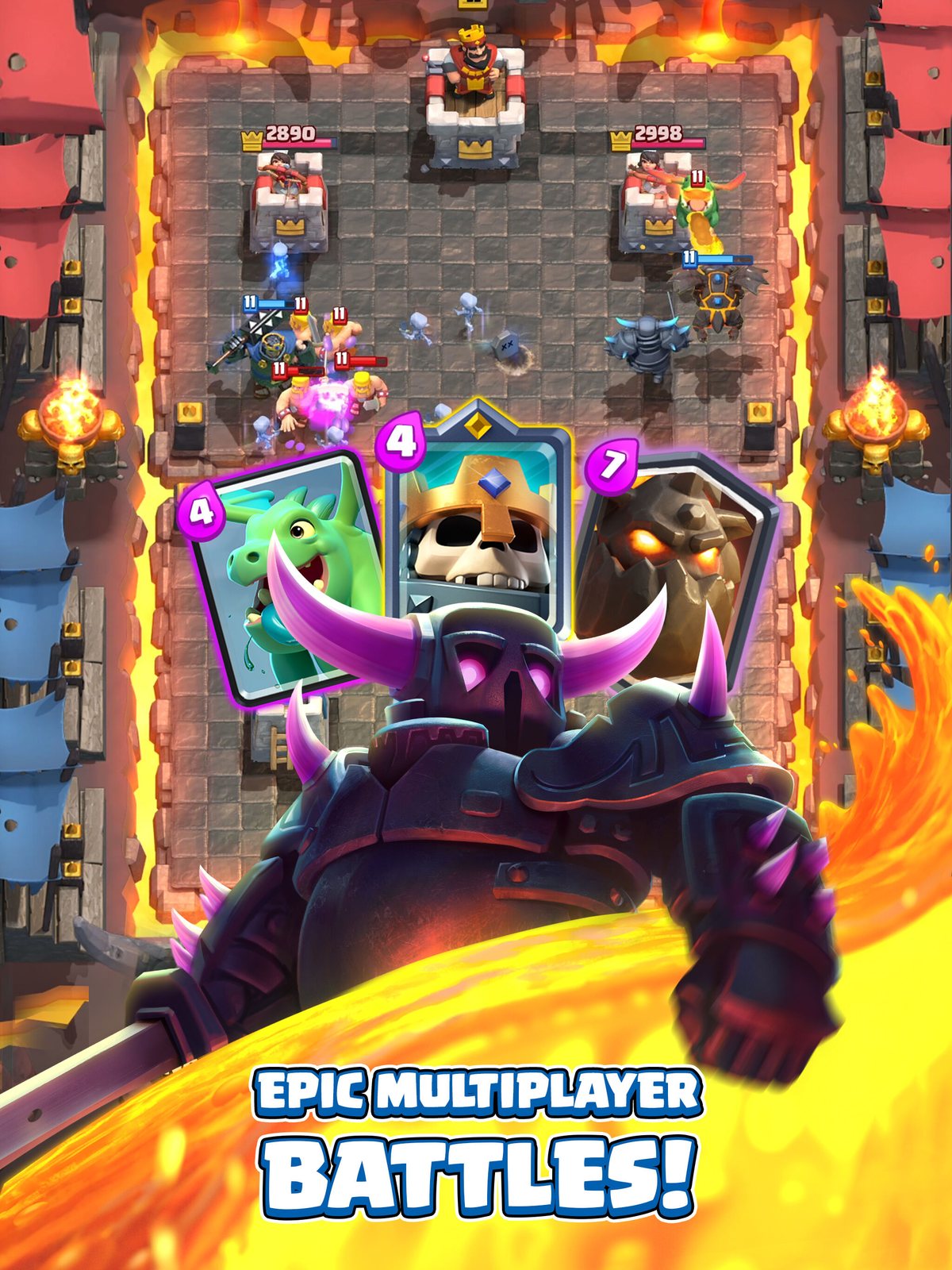
Keyboard controls and PC shortcuts
The absolute best part about playing Clash Royale on PC is that you no longer have to rely on a tiny, inaccurate touch screen. If you’re using cloud platforms that feature pre-mapped keys, you get access to several shortcuts that give you a massive speed advantage over your opponent.
By default, you can press keys 1, 2, 3, and 4 to instantly select cards from your active deck. Then, simply click with your mouse to drop them. But there’s an even better trick if you need lightning-fast reflexes for defense or to launch an aggressive counter-push:
- W: Immediately deploys your troops at the furthest spawn point.
- A + W: Launches a quick, direct attack on the left Princess Tower.
- D + W: Launches a quick, direct attack on the right Princess Tower.
These keyboard shortcuts save you from constantly dragging your mouse across the screen and let you react instantly right when your rival dumps a surprise combo at the bridge.
How to save your progress with Supercell ID
Having the best controls on the cloud is pointless if you have to start over with level one cards. To seamlessly sync your mobile account to your PC session, you absolutely have to use your Supercell ID.
When you load up the game in the browser or on your desktop, the start menu will ask you to log in. Just punch in the email linked to your account, enter the verification code sent to your inbox, and boom—your deck is back.

Pay attention to one crucial technical detail though: you cannot create a brand-new Supercell ID while playing on the cloud browser. You must set it up beforehand on a real mobile device (download the game, finish the tutorial, tap the gear icon, and link it). Pro tip: always use a Gmail address, as providers like Outlook tend to block or severely delay security codes from Supercell.
The official option: Google Play Games for PC
If you’re the type who prefers having an official app installed and don’t mind a direct download from Google's servers, Supercell finally heard the community and officially released Clash Royale natively on PC via Google Play Games.
This isn’t some third-party emulator quietly hogging background resources; it is the official, certified Android environment optimized for Windows. This desktop version gives you:
- A significantly larger screen natively optimized for PC monitors.
- Full out-of-the-box support for mouse and keyboard gaming without weird configurations.
- Automatic syncing of all your progress and achievements using your Google account.
This version is an absolute dream if you love streaming on platforms like Twitch or recording gameplay for YouTube. You no longer have to deal with clunky capture software or cables to mirror your phone screen.
At the end of the day, whether you’re throwing down cards from a browser to sneak a game in or using the heavy-duty app from Google Play, enjoying Clash Royale from the comfort of your PC has never been this accessible. Prep that deck and I’ll see you in the arena!

0
0
NEWSLETTER
Subscribe!
And find out the latest news
Etiquetas


