

Updated: May 2026
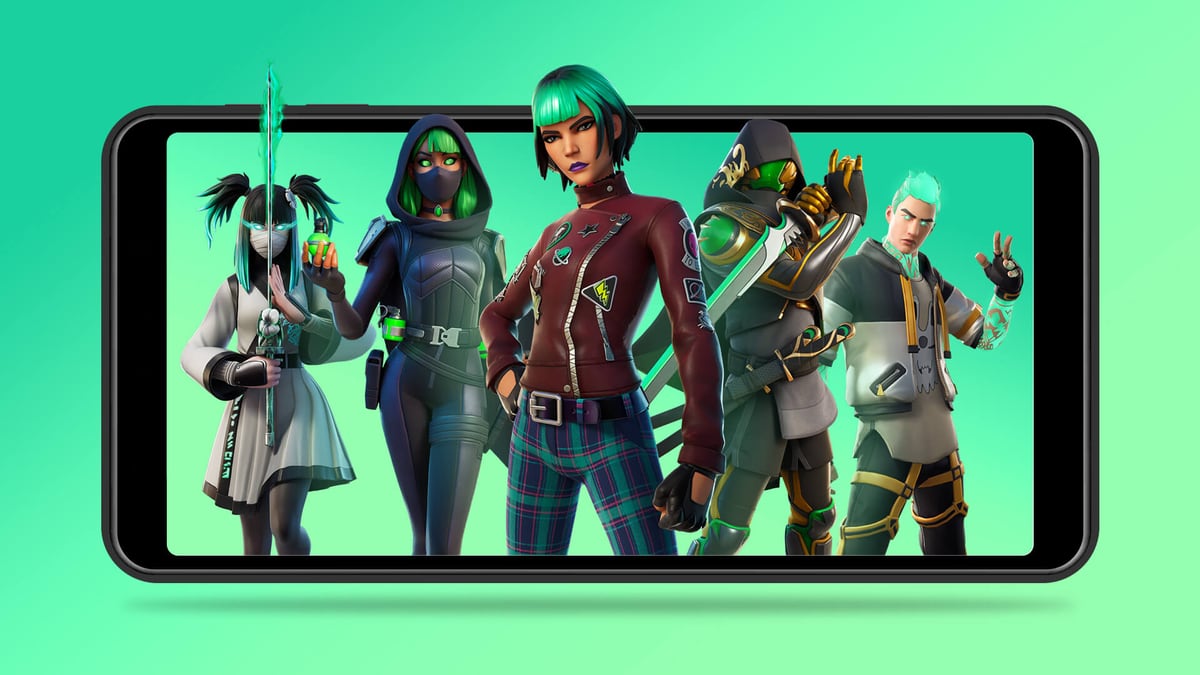
If your PC lacks high-end specs or you simply don't want to sacrifice dozens of gigabytes of storage on your phone, the cloud is your best ally. Playing Fortnite directly from your web browser is already a highly optimized reality thanks to Xbox Cloud Gaming, and the best part is that it's completely free.
You don't need an active Xbox Game Pass subscription or to spend any money to drop into the island. The service works by streaming the game through your internet browser, meaning the heavy lifting is done by the servers, not your device. All you need is a free Microsoft account and a stable connection to start racking up Victory Royales.
How to play Fortnite for free on the cloud step by step
Getting started is pretty straightforward. Follow these steps to set everything up on your favorite browser, whether that's Safari, Google Chrome, or Microsoft Edge:
- Open the web browser on your PC, iPhone, iPad, or Android device.
- Head over to the official Xbox cloud gaming page (Xbox.com/play).
- Sign in with your free Microsoft account. If you don't have one, creating it only takes a couple of minutes.
- Search for Fortnite in the free-to-play catalog and select the title.
- Press the play button to launch the game directly in your browser tab.
Keep in mind that this version isn't launched from the Xbox desktop app or the native mobile app; the entire process happens exclusively within your web browser window.
Create your account and play OLA TCG Battle
You get 34 free credits — enough for 6 packs or 34 battles. No deposit.
Sign up and playInternet and system requirements for cloud gaming
To ensure a smooth experience and avoid input lag or resolution drops, your hardware and connection need to meet a few basic requirements. It's always recommended to use a 5 GHz Wi-Fi network or a direct wired connection on PC.
iPhone and iPad users
- Operating system: You need iOS 14.4 or a higher version.
- Internet speed: A minimum of 10 Mbps for iPhone and 20 Mbps if playing on an iPad.
Android smartphones and tablets
- Operating system: Works on Android 6.0 and up.
- Internet speed: A connection of at least 7 Mbps is required.
Windows PC users
- Operating system: You must have Windows 10 (October 2020 update) or newer.
- Internet speed: Minimum of 20 Mbps.
Supported controllers and touch screens
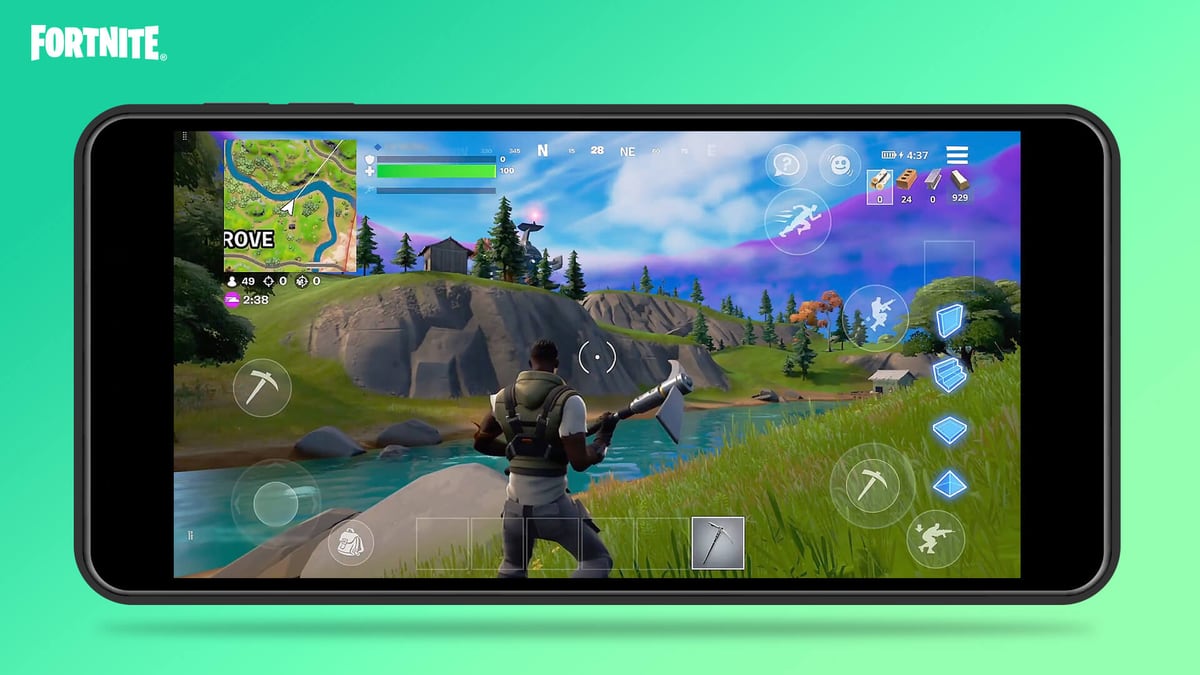
If you're playing on a mobile phone or tablet, you have the option to use the built-in touch controls on the screen. They are well-adapted, but if you want to play competitively, connecting a physical controller via Bluetooth or USB is the best choice.
The list of supported controllers is extensive. Among the official options, you can use the Xbox Wireless Controller, the Xbox Elite Wireless, and the Xbox Adaptive Controller. If you prefer third-party alternatives, accessories like the Backbone One for iOS, the Razer Kishi for Android, or models from 8BitDo and PowerA work perfectly. And if you're coming from other consoles, Sony's DualShock 4 is fully compatible as well.
How to link your Epic Games and Xbox accounts
One of the biggest advantages of the Epic Games ecosystem is cross-progression, meaning you never lose your progress. To ensure you have access to your existing skins and V-Bucks, it is crucial to link your accounts before starting:
- Go to the official Epic Games website and log in to your primary account.
- Navigate to your account settings and select the Apps and Accounts tab.
- Look for the Xbox option and click Connect.
- Log in with the exact same Microsoft account you will use for Xbox Cloud Gaming.
Once linked, all your Battle Pass unlocks, shop cosmetics, and levels will carry over automatically when you play on the cloud.
Available game modes
When it comes to content, logging in from a Windows PC gives you full access to all modes: Battle Royale, Zero Build, Impostors, community experiences, and the Save the World campaign. However, if you play from a smartphone or tablet, Save the World won't be available in the cloud catalog.
With this alternative, there's no excuse to miss out on live events or skip quick daily quests when you're away from your main console. Assuming you have decent internet, the cloud solves your storage problems once and for all.
Did this guide help you get your Victory Royale on the cloud? [Create your olagg.io profile] to stay updated on the latest Fortnite seasons, free cosmetic codes, and more guides tailored for LATAM players.
0
0
Etiquetas


