

Hey everyone! For Fortnite players, every millisecond counts. Whether you play on console or PC, optimizing your controller and graphics settings is vital to achieving that coveted 'zero lag' and maximizing your FPS. We analyzed the latest official recommendations from Epic Games for competitive play, alongside performance breakdowns from GameBoost, to bring you the ultimate setup for 2026.
Best Graphics Settings (Performance Mode)
According to the developers at the Epic Games Store, the key to competitive play is prioritizing frames per second (FPS) over visual fidelity. If you play on PC, Performance Mode is still the undisputed king. GameBoost confirms that this mode drastically lightens the load on your GPU and CPU, which is ideal for avoiding stuttering.
Create your account and play OLA TCG Battle
You get 34 free credits — enough for 6 packs or 34 battles. No deposit.
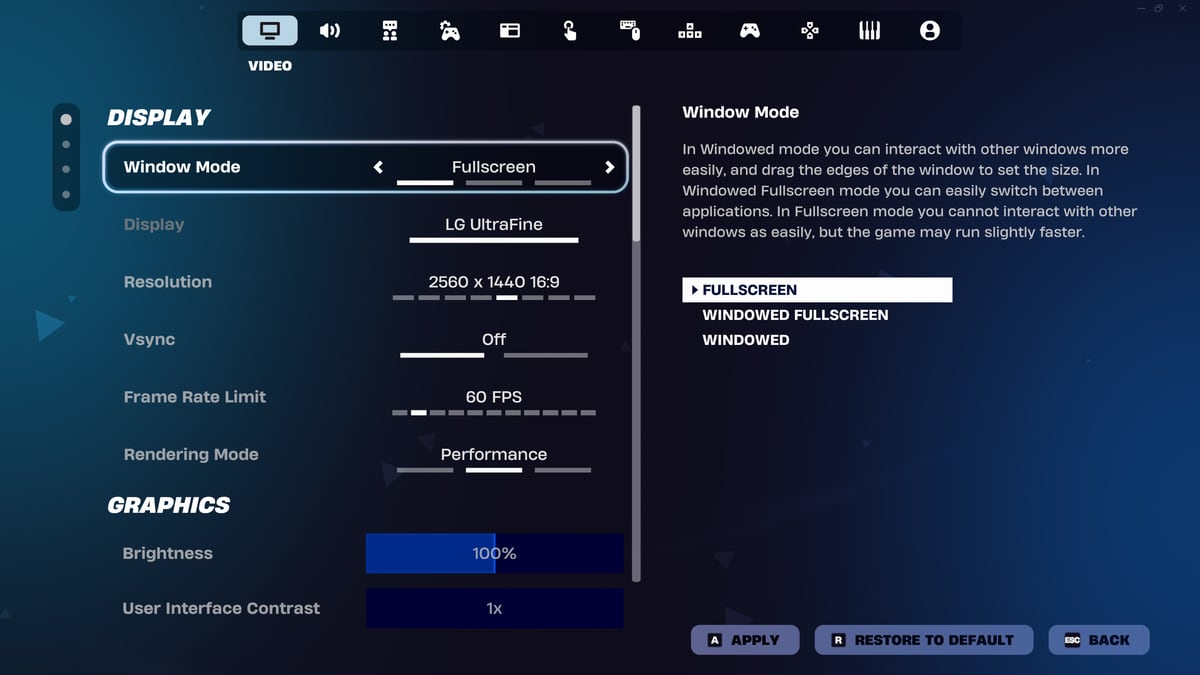
Sign up and playFor the video settings tab, this is the recommended zero-lag configuration:
- Resolution: 1920x1080 (or your monitor's native resolution).
- Frame Rate Limit: One step above your monitor's refresh rate (e.g., 144 FPS for a 120Hz monitor).
- View Distance: Medium or Far (Medium is enough to spot players, according to Epic).
- Shadows: Off.
- Anti-Aliasing: Off.
- Textures: Low or Medium.
- Effects & Post Processing: Low.
Controller Settings for Precision and No Input Lag
Input lag can ruin a perfect match. For controller players, reducing your Deadzone is the first step. It is recommended to lower it to around 5-8%, or the exact point just before your character starts moving on its own (stick drift).
- Look Input Curve: Linear. Although Exponential is more forgiving, Linear offers a 1:1 response, eliminating the sluggish feeling.
- Build/Edit Mode Sensitivity Multiplier: Between 1.8x and 2.2x.
- Look Dampening Time: 0.00 seconds (vital to remove any artificial delay in turning).
Sound and Network: The Real "Zero Lag"
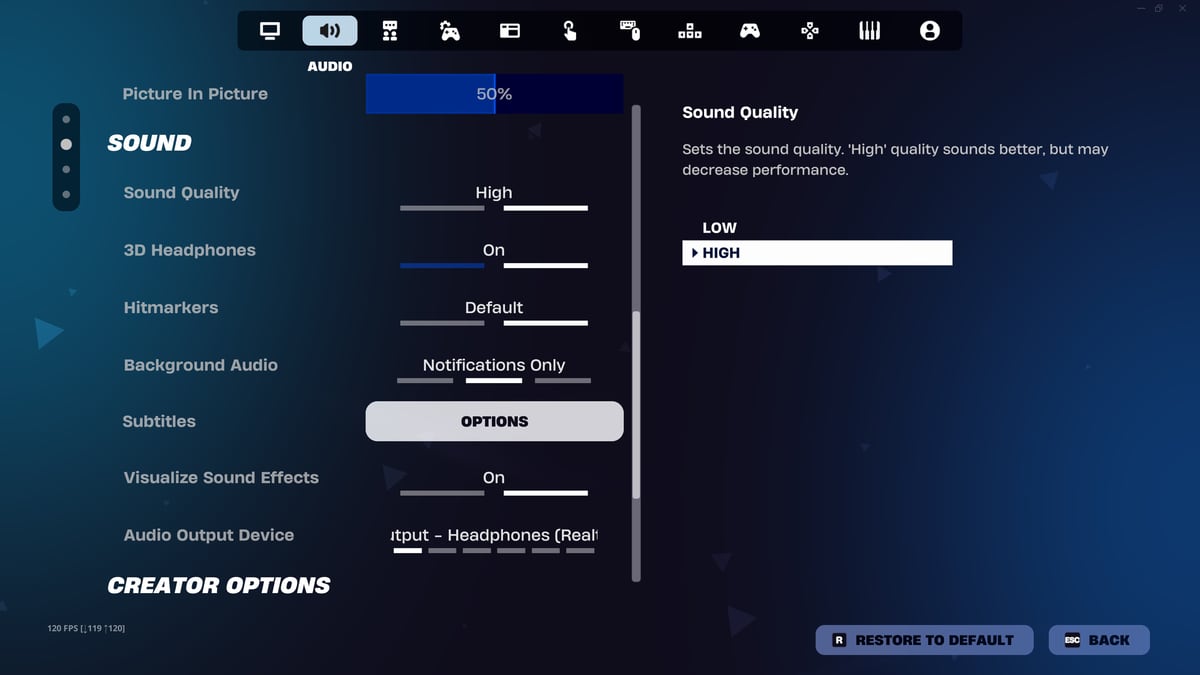
It's not all about video. Epic Games highly recommends turning on "Visualize Sound Effects". This isn't just an accessibility feature; it grants a massive competitive advantage by showing footsteps and gunshots on screen, reducing your reaction time even if there are slight audio delays. If you're on a low-end PC, set Sound Quality to Low to scrape back some extra FPS.
Finally, Epic Games emphasizes the importance of a stable connection. Go to the Game UI settings and make sure Net Debug Stats is on to monitor your ping and packet loss in real-time. Also, turn off Replays, as background recording consumes disk read/write resources and bandwidth.
Have you tried this setup yet? Share this guide with your squad so nobody has the "lag excuse" in your next ranked match!
0
0
Etiquetas


