

Grand Theft Auto VI (GTA 6) lets players explore Vice City and the state of Leonida through activities such as driving, combat, and exploration. Properly configuring the controls, camera, and visual settings can make gameplay more comfortable.
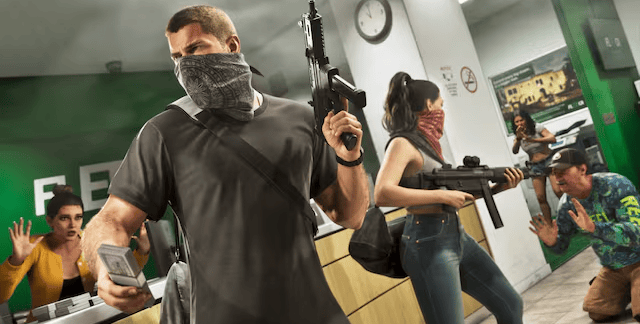
The best settings depend on each player's preferences. Here are the configurations worth reviewing to optimize the experience.
How to Change Settings in GTA 6
To change the settings, players should:
- Open the pause menu.
- Select Settings.
- Enter the corresponding category.
- Adjust the options according to their preferences.
It is also possible to restore the default settings.
Best Controller and Sensitivity Settings
Controller sensitivity affects aiming accuracy and camera movement speed. It is recommended to start with medium values and adjust them gradually.
- Camera sensitivity: use a moderate setting for better movement control.
- Aim sensitivity: lower it slightly if keeping the crosshair on enemies is difficult.
- Inverted controls: keep them disabled unless the player prefers using them.
- Button layout: select the most familiar control scheme.
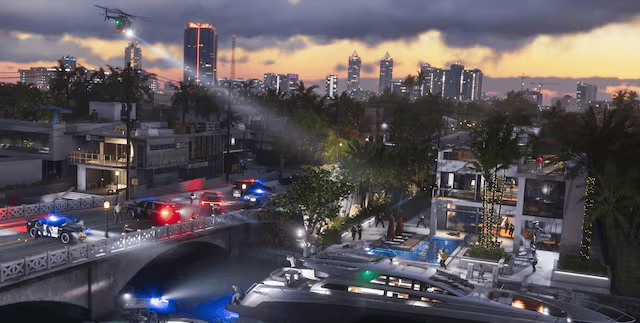
Combat and Movement Settings
Gameplay options allow players to adapt certain actions to their preferred playstyle. These include assists for combat, driving, and specific activities.
Players looking for an easier experience can enable the available assists. Conversely, reducing these assists provides a greater level of challenge.
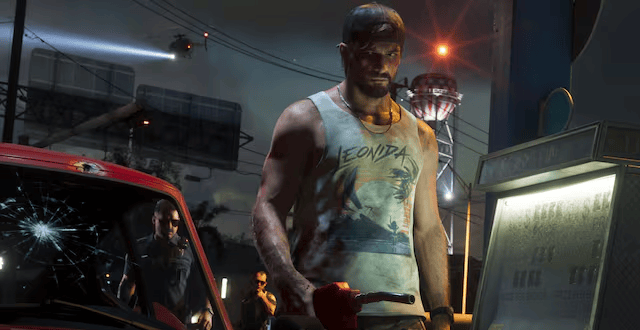
Best Camera and Driving Settings
Camera perspective affects visibility during exploration and vehicle handling.
- On-foot camera: choose a distance that provides a clear view of the character and their surroundings.
- Vehicle camera: use a perspective that makes it easier to anticipate turns and obstacles.
- Camera movement: reduce camera shake if it causes discomfort.
- Cinematic camera: use it mainly during exploration.
Graphics and Performance Settings
GTA 6 is designed to target 30 FPS on consoles. On PlayStation 5 Pro, it features visual improvements through PSSR and ray-traced shadows.
A 60 FPS performance mode has not been officially confirmed, so recommending settings that promise to achieve that frame rate would be inappropriate.
It is also worth reviewing contrast and visual effects to make characters and objects easier to identify.
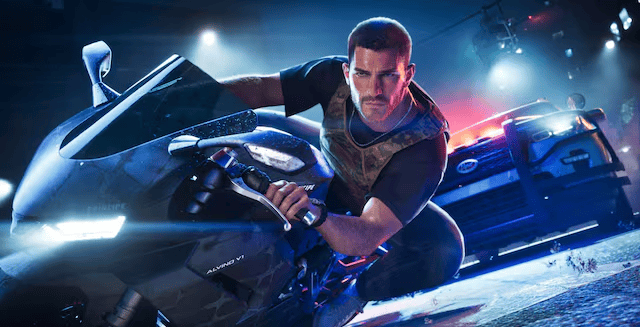
Interface and Subtitle Settings
The interface allows players to customize various indicators displayed during gameplay.
- Subtitles: enable them to follow conversations.
- Text size: increase it if on-screen instructions are difficult to read.
- Navigation: keep essential navigation indicators visible.
- Crosshair: choose a style that makes aiming easier.
- Notifications: reduce secondary on-screen elements whenever possible.
Audio and DualSense Settings
On PlayStation 5, GTA 6 takes advantage of Tempest 3D Audio, as well as the DualSense controller's vibration and adaptive trigger features.
It is recommended to keep dialogue at a comfortable volume and reduce vibration intensity if it causes discomfort.
Which Settings Should You Change First?
The priority settings are camera sensitivity, aiming controls, driving camera perspective, and interface options.
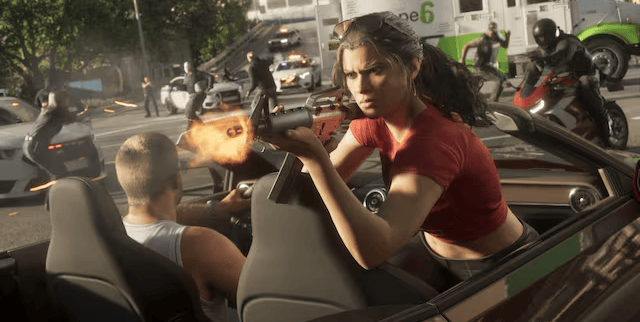
Afterward, players should review gameplay assists, visual effects, and audio settings. Testing each change individually makes it easier to find a configuration that suits personal preferences. There is no universal combination of settings for GTA 6. The most suitable configuration depends on the controller, console, and playstyle.
0
0
Create your account and play OLA TCG Battle
You get 34 free credits — enough for 6 packs or 34 battles. No deposit.
Sign up and playOther news you might be interested in
Etiquetas


