

Updated: March 2026
Playing Roblox only to have your character freeze mid-combat in Blox Fruits is incredibly frustrating, but new optimization tools in 2026 are changing the game for low-end setups. By combining Windows system tweaks with dedicated utilities like RoBooster 2 and ExitLag, you can push older PCs to hit over 100 FPS and eliminate network lag without buying a new graphics card.
In this guide, I'll walk you through how to squeeze every drop of performance out of your current hardware. We're going to cover background process management, texture compression, and network stability fixes that are saving low-end PC gamers right now.
How to boost FPS in Roblox on low-end PCs
Before installing any third-party tools, your operating system needs to be clean and completely focused on running your game. Windows loves to run background processes that eat up your RAM and CPU. Try these steps first:
- Disable SysMain: If you're running on lower memory capacity (like 4 GB or 8 GB of RAM), this Windows service (formerly Superfetch) aggressively competes with Roblox for resources. Open your Windows search bar, type "Services", find SysMain, right-click it to select "Stop", and change the startup type to "Disabled".
- Tweak your power plan: Head into your PC’s power or battery settings and choose the High Performance plan. This forces your processor to run at its maximum speed rather than downclocking to save energy.
- Pause background updates: Windows Update can decide to download massive files while you play, ruining both your framerate and your ping. Turn it off temporarily during gaming sessions.
Create your account and play OLA TCG Battle
You get 34 free credits — enough for 6 packs or 34 battles. No deposit.
Sign up and playAlso, if you're using an older dedicated AMD or NVIDIA graphics card, open its control panel. Set your power preference to Maximum Performance, completely turn off V-Sync (vertical sync), and enable features like Anti-Lag if you're on AMD. Just doing these basics will make your client feel significantly more responsive.
Best programs to fix Roblox lag
When standard system settings aren't enough, you need tools built specifically for the game client. Don't use generic game boosters that barely do anything; you need software that understands the Roblox engine.
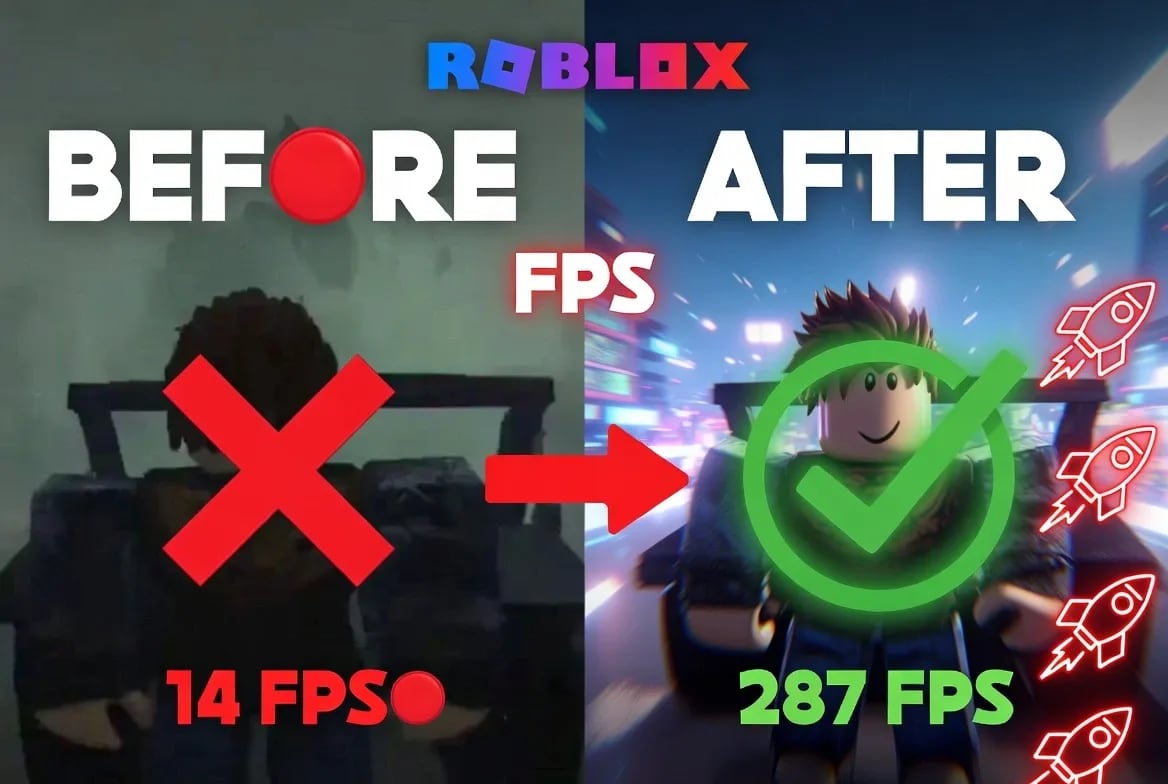
One of the top free utilities in 2026 is RoBooster 2. This tool doesn't inject cheats, so it won’t get you banned. One of its best features is the graphics module, which lets you completely strip out the default Roblox textures and replace them with ultra-lightweight versions to free up VRAM. In community benchmarks, older rigs running an FX 6300 and 8 GB of RAM jumped from an unplayable 40 FPS to over 110 FPS. That’s a massive 175% boost in raw performance without spending a dime.
To get the most out of it:
- Check the main dashboard to monitor your CPU and RAM usage live.
- Enable "Extreme Mode" if you don’t care about graphics and just want pure speed.
- Use the texture removal tool. (If you dislike the flat look, just click the Restore Textures button).
- For the ultimate setup, combine it with BloxStrap, an alternate launcher that fully integrates with the optimizer and unlocks more FPS flags.
How to lower ping and reduce network stuttering
Having sky-high FPS means nothing if your internet causes micro-stuttering. If your character rubberbands across the map or inputs feel heavily delayed during crowded servers, you aren't dealing with a graphics issue—you have packet loss.
By default, Windows reserves up to 20% of your network bandwidth for OS services via a feature called QoS (Quality of Service). Disabling QoS packets guarantees that 100% of your internet bandwidth is available for the game.
If your lag stems from bad ISP routing, network optimization tools like ExitLag are a lifesaver. Unlike a standard VPN that slows you down by routing for privacy, ExitLag focuses purely on finding the fastest path to the Roblox servers. This drastically lowers your ping jitter, making your frametimes far more consistent. Players report that by cutting out those random desync spikes, a stable 60 FPS can actually feel like a higher framerate, giving you a huge edge in competitive games like Frontlines.

Finally, don't ignore physical maintenance. Dust clogging your fans will cause thermal throttling, immediately tanking your FPS no matter what software you use. Keep your PC cool, [Try ExitLag for free today] to stabilize your ping, and apply these settings to completely change how your game plays.
0
0
Etiquetas


