
'/%3e%3cpath%20d='M4.94162%205.99547L4.02701%205.08086L3.63428%205.47359L4.94162%206.78093L7.63768%204.08487L7.24495%203.69214L4.94162%205.99547Z'%20fill='white'/%3e%3cdefs%3e%3clinearGradient%20id='paint0_linear_2302_10195'%20x1='0.5'%20y1='10'%20x2='10.4939'%20y2='10'%20gradientUnits='userSpaceOnUse'%3e%3cstop%20stop-color='%234E10FF'/%3e%3cstop%20offset='1'%20stop-color='%23AB17DF'/%3e%3c/linearGradient%3e%3c/defs%3e%3c/svg%3e)
Updated: July 29, 2026
Hey everyone. Are you tired of Roblox demanding massive updates right when you just want to jump into a quick match with friends? Or maybe you are using a phone or PC that simply has zero storage space left. Whatever the case, installing the native app isn't always the best move. The good news is that cloud gaming and browser versions are here to save the day. Today, I'll walk you through how to play without downloading a single megabyte, keeping your FPS high and preventing your device from melting.

Step-by-step: Playing Roblox online in your browser
If you are on a computer, skipping the full installation is incredibly straightforward. Playing straight from your browser gives you quick access without sacrificing any of the social features we all use. Follow these steps to jump into the metaverse with zero hassle:
- Open your favorite browser and head to the official site at roblox.com.
- Log in to your current account. If you are a newcomer, create a free account right there.
- Go to the Discover tab to explore thousands of user-created worlds.
- Pick any experience and hit the Play button.
That's it! The system automatically connects you to a server. It's a lifesaver if you are sharing a PC or just refuse to clutter your hard drive with unnecessary files.
How to play on low-spec phones and PCs via cloud gaming
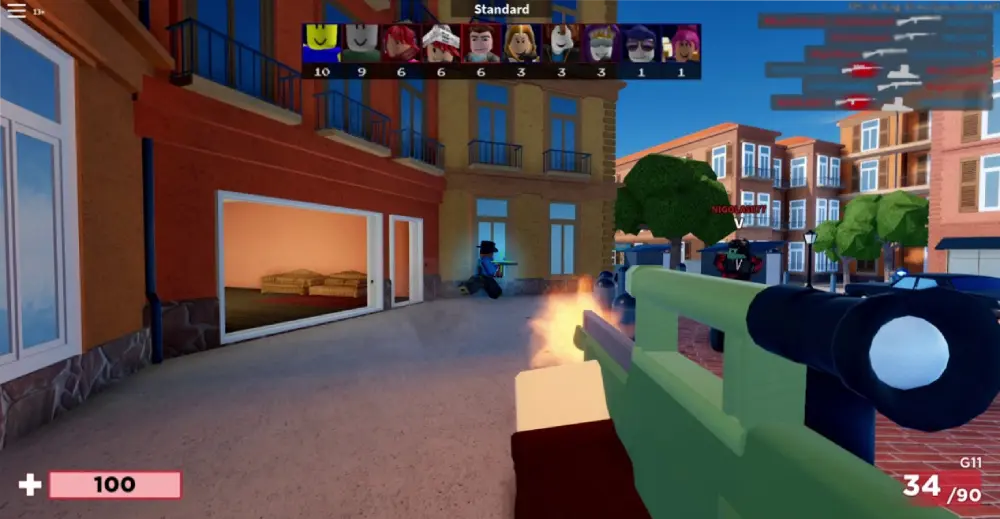
If you own a phone with just 32 GB of storage or a potato laptop that struggles to open a text document, cloud gaming is the answer. Platforms like CloudMoon let you play demanding titles directly from their global servers.
Instead of forcing your processor to do the heavy lifting, the game graphics render in the cloud and stream to your screen in real time. This means you can run Roblox at a smooth 60 FPS even if your phone only packs 3 GB or 4 GB of RAM—and best of all, without your device overheating.
Follow these specific steps to get started with CloudMoon:
- Navigate to the CloudMoon web portal on your mobile browser or PC.
- Create a free account using your email or Google login.
- Search for Roblox in the top search bar.
- Select your preferred server region (choose the one closest to you for the lowest ping).
- Click Start Game and log into your Roblox account within the virtual cloud instance.
You get to skip all the annoying day-one patches and avoid the lag that comes from maxed-out memory.
Tips to reduce lag in cloud gaming
Cloud gaming is awesome, but it relies 100% on your internet connection. If the game looks blurry or your controls feel sluggish, your network needs a tune-up.
- Use 5 GHz networks: If you are on Wi-Fi, connect to the 5 GHz band rather than 2.4 GHz. If you are on a PC, an Ethernet cable is always the undisputed king.
- Pause all downloads: Don't even try playing while downloading heavy torrents or streaming 4K videos in the background.
- Optimize your routing: Tools like ExitLag are a massive help here. This software finds the shortest route between your connection and the game servers, drastically lowering your ping and preventing packet loss. If you want a smooth, competitive session, it is definitely worth trying.

Essential security settings
Since you are accessing the game via third-party browsers or cloud services, reviewing your security is always a smart move. The Roblox universe is huge, and you always need to watch your back.
- Enable Parental Controls if you are setting this up for a younger gamer. It helps limit who they can interact with.
- Never share personal information (like your real name or home address) in chats, no matter how friendly other players seem.
- Always use the built-in reporting tools if you spot someone being toxic or acting inappropriately.
Popular experiences to try without downloading
Once you have set up your quick access via browser or the cloud, the entire Roblox catalog is right at your fingertips. Since you don't have to download every individual minigame, you can hop from one experience to another in seconds.
Here are three heavy-hitter games to test your new cloud setup:
- Blox Fruits: This massive open-world RPG is notorious for lagging on older phones during intense boss fights. On cloud gaming, your combos will execute flawlessly.
- Brookhaven RP: While not combat-heavy, Brookhaven is packed with player avatars, vehicles, and custom houses that eat up RAM. Streaming it keeps your device cool.
- Adopt Me!: Trading pets in crowded servers usually causes massive frame drops. By running it in your browser or via CloudMoon, you can navigate the busy trading hubs without crashing.
Playing Roblox without downloading saves you the headache of managing storage and drops you straight into the action. Try it out on your browser or give the cloud a shot, tweak your internet to kill the lag, and I'll see you in your next favorite map! Ready to put these tips to the test? Jump into your favorite world now, and don't forget to check out the Roblox quests on olagg.io to earn rewards while you play without lag!

0
0
NEWSLETTER
Subscribe!
And find out the latest news
Etiquetas


