Best PC Settings for Silent Hill: Townfall (More FPS and Less Stuttering)

'/%3e%3cpath%20d='M4.94162%205.99547L4.02701%205.08086L3.63428%205.47359L4.94162%206.78093L7.63768%204.08487L7.24495%203.69214L4.94162%205.99547Z'%20fill='white'/%3e%3cdefs%3e%3clinearGradient%20id='paint0_linear_2302_10195'%20x1='0.5'%20y1='10'%20x2='10.4939'%20y2='10'%20gradientUnits='userSpaceOnUse'%3e%3cstop%20stop-color='%234E10FF'/%3e%3cstop%20offset='1'%20stop-color='%23AB17DF'/%3e%3c/linearGradient%3e%3c/defs%3e%3c/svg%3e)
Silent Hill: Townfall uses dense fog, dynamic lighting, and layered environmental detail. This combination can affect performance on less powerful hardware. If the frame rate drops or stuttering appears, a few specific adjustments can improve stability more than lowering every option to minimum at once. Below are the best graphics settings for stable performance, the options that should be prioritized when reducing quality, and the official PC requirements.
Best PC Graphics Settings for Silent Hill: Townfall
The configuration below targets a stable 60 FPS. The actual result depends on the hardware, but it serves as a reliable baseline. Players with stronger GPUs can raise individual options once stability is confirmed.
| Graphics Setting | Recommended Configuration |
|---|---|
| Display Monitor | Primary Monitor |
| Window Mode | Fullscreen |
| Display Resolution | Native Resolution |
| Upscaler | DLSS / FSR / TSR |
| Upscaler Quality Mode | Balanced |
| VSync | Off |
| Frame Rate Limit | 60 FPS |
| Fog Quality | Low |
| Texture Quality | Medium |
| Shadow Quality | Low |
| Reflections | Low |
| Global Illumination | Low |
| Post Processing | Low |
| Raytracing | Off |
| Override Field of View | Off |
| Letterbox | Off |
| Motion Blur | Off |
It is recommended to change one setting at a time and test in the same area of the game. This way it is possible to identify exactly which change produced the improvement.
How to Configure Display and Upscaling
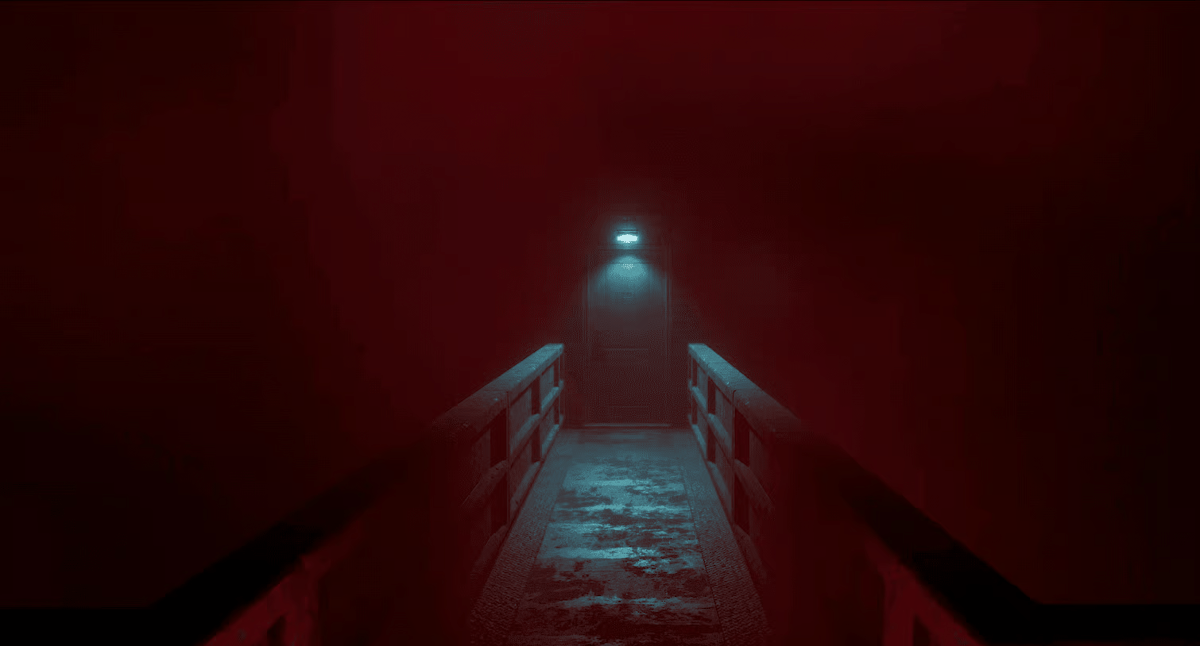
Start with the monitor’s native resolution. Running a lower resolution with the upscaler disabled reduces image quality without real performance gain. Once native resolution is set, enable the upscaler supported by the GPU: DLSS on NVIDIA RTX cards, FSR or TSR on everything else. The Balanced upscaler mode is the recommended starting point. It reduces the internal rendering resolution enough to recover frame rate while keeping a sharper image than Performance mode. If frame drops still occur after other adjustments, switch to Performance, although less detail will be noticeable on distant objects. VSync is left off initially. It adds input latency and can limit the frame rate below the target if the GPU dips momentarily. If screen tearing appears, it is preferable to enable the monitor’s variable refresh rate feature. A hard 60 FPS cap helps stabilize frame pacing on hardware that can hold it consistently. If 60 FPS is not reachable, set a lower cap that can actually be sustained rather than leaving the rate uncapped.
Create your account and play OLA TCG Battle
You get 34 free credits — enough for 6 packs or 34 battles. No deposit.
Sign up and play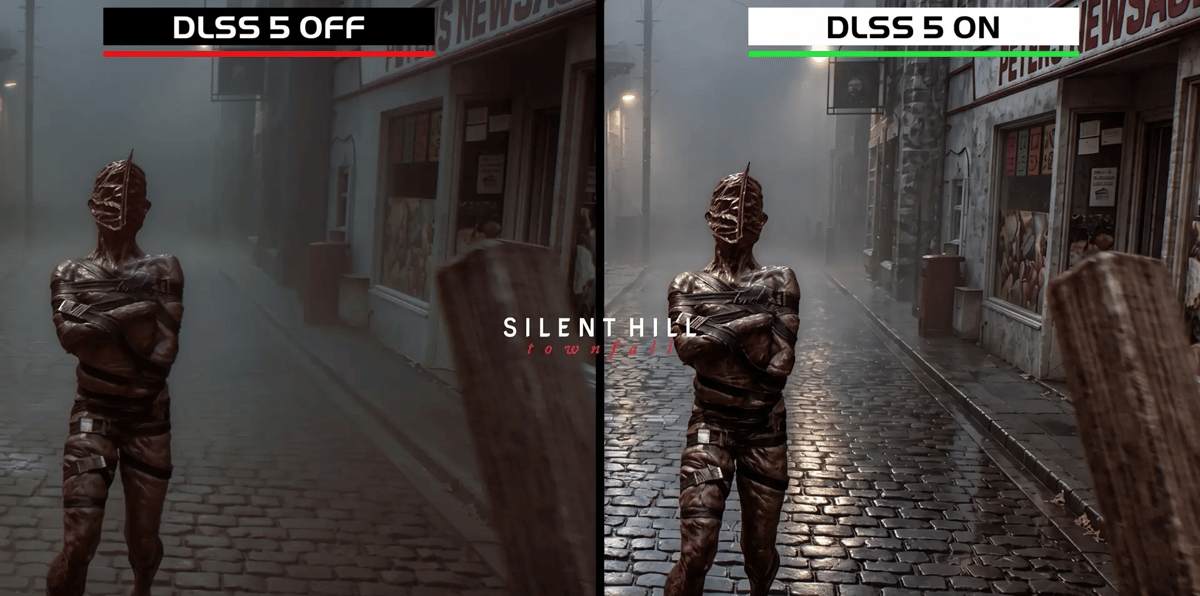
Which Graphics Settings Affect Performance the Most
Not every option carries the same GPU cost. These four should be prioritized before touching the rest.
Fog Quality
Fog is a central visual element of Silent Hill: Townfall and volumetric fog effects have a high cost. Low is the appropriate starting point for performance-oriented configurations. If the frame rate remains stable after other reductions, Medium can be tested to recover some atmosphere without the full cost of High.
Shadow Quality and Reflections
Both settings increase GPU workload noticeably. Keeping them on Low reduces rendering load while preserving enough environmental detail to navigate and read the scene.
Raytracing and Global Illumination
Raytracing is turned off entirely in any performance-focused setup. The visual improvement does not justify the frame rate cost unless a high-end GPU with spare headroom is available. Global Illumination on Low is sufficient, especially on hardware near the minimum requirements.
Texture Quality
Medium works well as a starting point. If the GPU has enough VRAM, High can be tested. If stuttering appears or textures load slowly, drop to Medium or Low and check whether VRAM usage is the cause.
Texture Quality affects VRAM consumption more than raw GPU performance. On cards with 8 GB or less, High textures can cause hitching even when the GPU itself has processing headroom.
How to Fix Low FPS and Stuttering
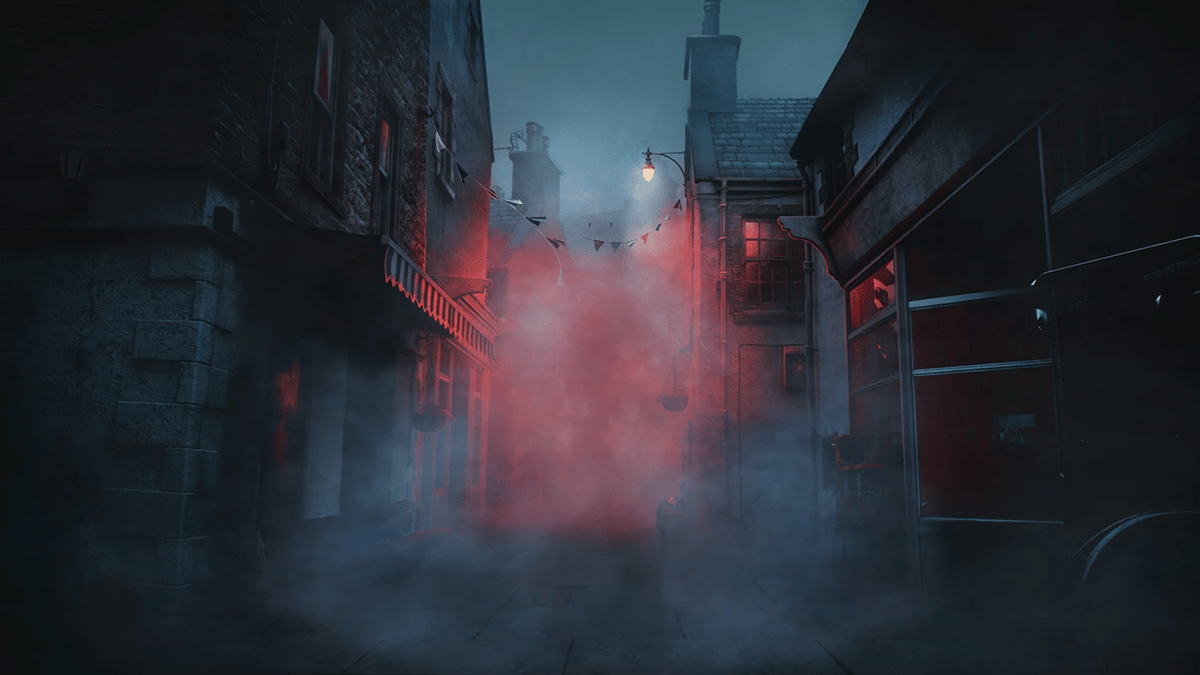
If the settings above do not resolve the issues, these fixes can be applied one at a time:
- Update the GPU driver. Install the latest version from NVIDIA, AMD, or Intel before any other action. Driver updates frequently include optimizations for new releases.
- Enable Windows Game Mode. In Windows Settings, go to Gaming > Game Mode and turn it on.
- Close background applications. Browsers, streaming software, and background updaters all compete for CPU, RAM, and GPU resources.
- Drop the upscaler to Performance mode. If Balanced is not enough, Performance reduces the rendering workload further.
- Lower Texture Quality. If VRAM is maxed out, texture streaming will stutter regardless of other settings.
- Set a realistic FPS cap. If 60 FPS is unstable, cap at 45 or 30 instead of leaving it uncapped. Consistent framing feels smoother than an average of 55 FPS with dips to 35.
Silent Hill: Townfall PC System Requirements
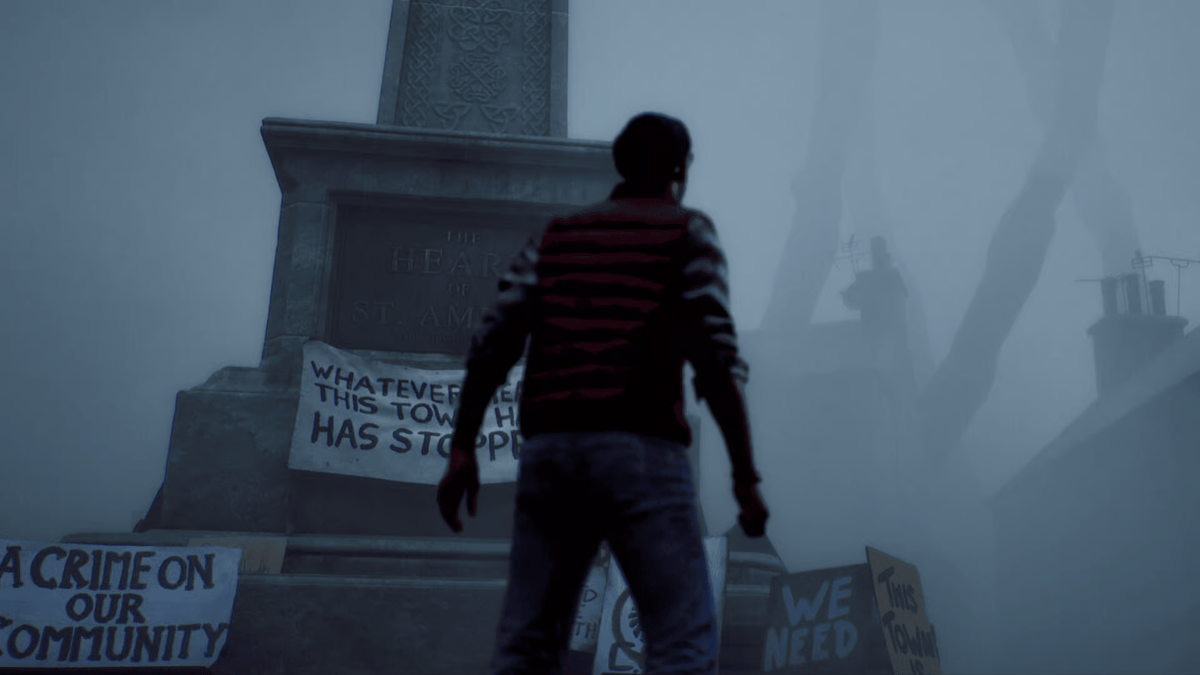
These requirements should be checked before adjusting settings. If the hardware is at or below minimum, targeting 30 FPS on Low settings is more realistic than chasing 60 FPS.
| Component | Minimum | Recommended |
|---|---|---|
| OS | Windows 11 64-bit | Windows 11 64-bit |
| CPU | Ryzen 5 3600 / Intel i7-8700K | Ryzen 7 5700X / Intel i7-9700K |
| RAM | 16 GB | 32 GB |
| GPU | RTX 2060 Super / RX 6600 | RTX 3080 / RX 7800 XT |
| DirectX | Version 12 | Version 12 |
| Storage | 75 GB | 75 GB |
The minimum specification targets 1080p at 30 FPS on Low settings. The recommended specification targets 4K at 30 FPS on High with upscaling set to Balanced. Neither target guarantees 60 FPS, so players near the minimum end should set a 30 FPS cap and prioritize stability over raw frame rate. Both tiers require Windows 11. If Windows 10 is still in use, that alone may cause compatibility problems regardless of the GPU.
Silent Hill: Townfall Community
Share tips, discuss theories and find other Silent Hill: Townfall players.
Join our Discord0
0
Other news you might be interested in
Etiquetas


